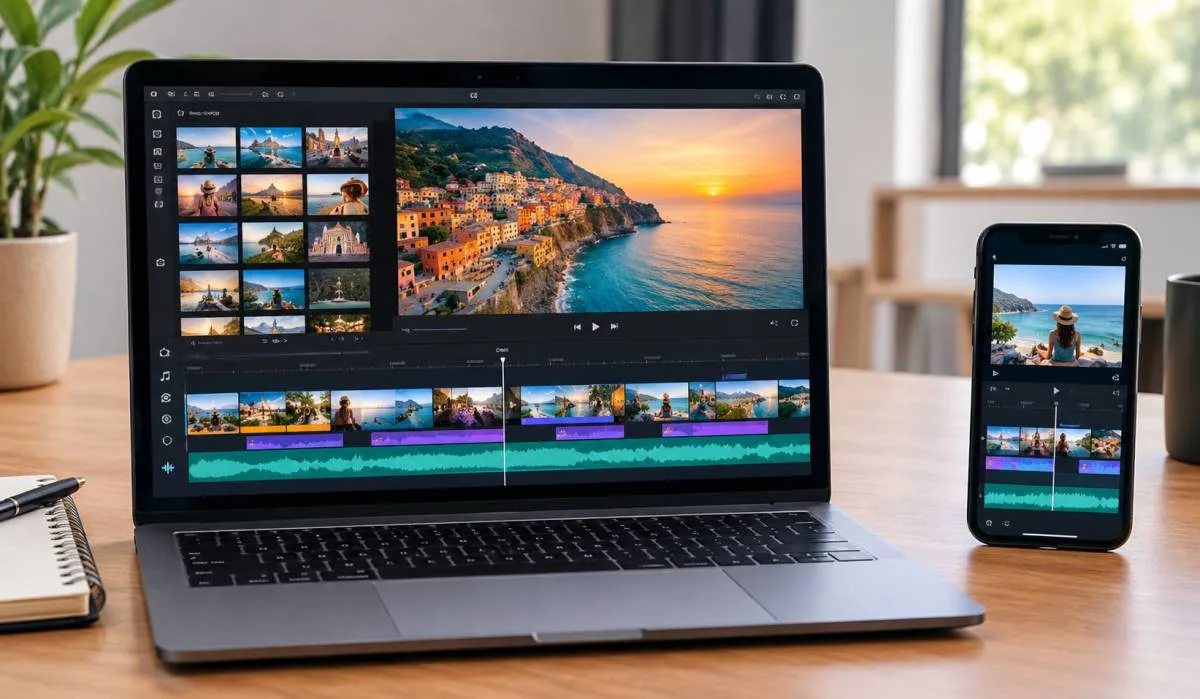
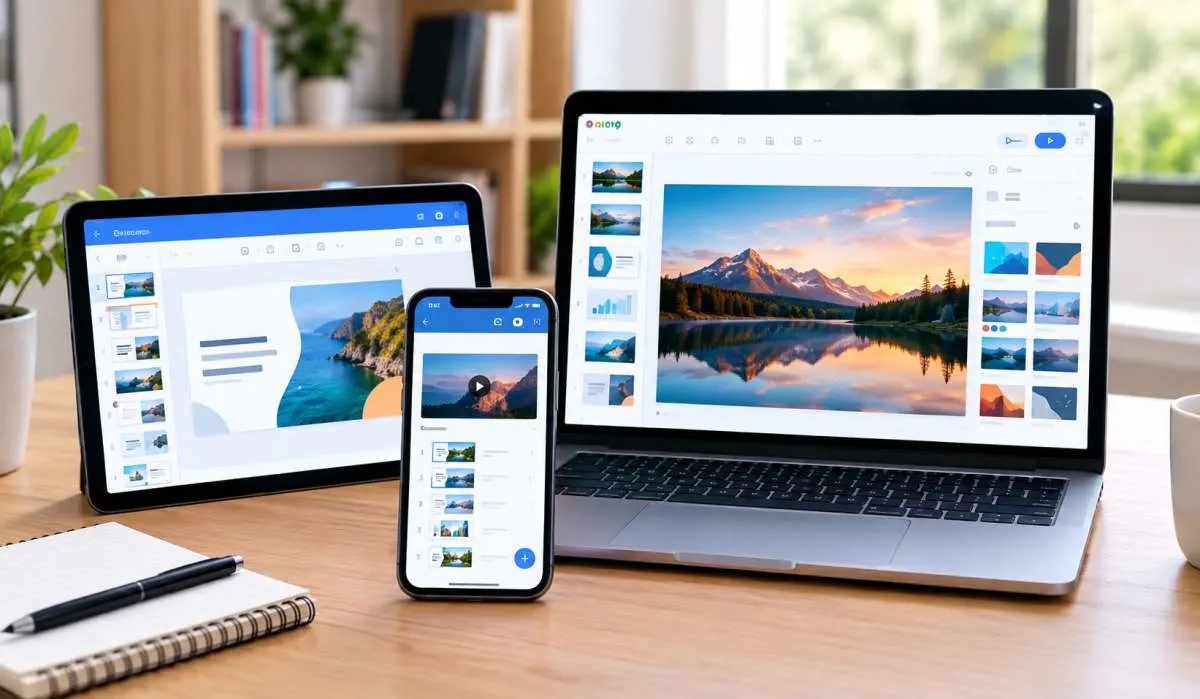
How to Make a Slideshow Video: Simple Step-by-Step Guide
You have photos on your phone. You have memories you want to share. A slideshow video is the perfect way...
Gadgets & Technologies Are Together

While it can look neat and easy to browse a WordPress site with a slideshow, when the layout is disturbed, it can impact the website design as a whole. Images can be stretched, misaligned, cropped or look fine on desktop, but not on mobile devices.
It is a common mistake and the great thing is that there are some simple steps to take to solve a lot of the problems. The most common cause of WordPress slideshow layout issues is image sizes, theme settings, plugin conflicts, cache files or custom CSS. Many of the times, you don't need to be an expert in the technicalities to fix it.
A slideshow may break for several reasons. Sometimes the image size does not match the slider area. Sometimes the theme adds its own styles and changes the slider width or height. In other cases, another plugin affects the layout or the browser cache shows an old version of the page.
Mobile view can also cause trouble. A slider that looks fine on a laptop may overlap text, become too tall, or lose alignment on a phone screen. This happens because the design does not adjust well for smaller screens.
Before changing too many things at once, it is better to check the issue step by step. That saves time and makes it easier to find the real cause.
Read More: Best Formats Slideshow Files for Web Accessibility in India
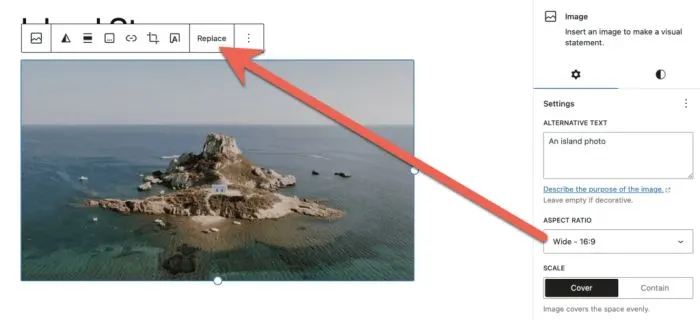
One of the most common reasons for slideshow issues is the image size. If the image is too small, too large, or not in the right ratio, the slider may look uneven. Some images may be stretched, while others may appear cropped.
Use images that match the size of the slider area. If your slideshow is made for a wide banner, then use wide images. If the slider is narrow, do not use very tall images. When image sizes are not consistent, the layout often looks broken.
It also helps to keep the same ratio for all slides. For example, if one image is wide and another is almost square, the slideshow will change height from slide to slide. That makes the page look unstable.
Most slider plugins allow control over width, height, image fit, and responsive mode. If these settings are not correct, the layout may shift in a bad way.
Open the slider settings and check the following:
If the slider offers a “cover” or “contain” option, test both. One may fit your design better than the other. A small change in these settings can improve the layout a lot.
Many WordPress layout issues happen because of the theme, not the slideshow plugin. Some themes use strong CSS rules that affect all images, containers, or page sections. This can push the slideshow out of place.
A simple test can help. Switch to a basic theme for a short time and check the slideshow. If the layout becomes correct, then your active theme is likely part of the problem. In that case, you may need to adjust theme CSS or ask the theme support team for help.
Theme builders can also create layout trouble. If you are using a page builder, check whether it adds extra padding, margin, or width limits around the slider block. Even a small wrapper setting can change the final look.
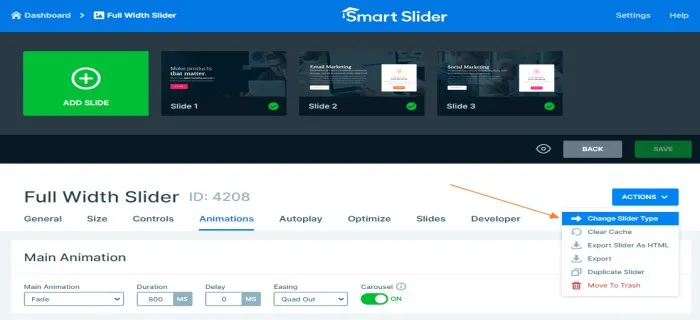
Sometimes the slider is fixed, but the page still shows the old broken layout. This happens because of cache. WordPress cache, plugin cache, browser cache, or server cache can all hold an older version of the page.
Clear the cache from:
After clearing cache, reload the page in a private window or another browser. This helps you see the latest version without old stored files getting in the way.
Another plugin may be changing the layout. Security plugins, optimisation plugins, lazy load plugins, and image compression plugins sometimes affect sliders. They may delay loading, resize images, or change how scripts run.
To test this, disable other plugins one by one and check the slider after each change. If the layout becomes correct after turning off one plugin, you have found the conflict. Then you can decide whether to replace that plugin or adjust its settings.
Be careful with optimisation plugins. They often improve speed, but they may also break scripts or image loading order. If your slideshow stopped working after a speed setup, review those settings first.
A slideshow may look fine on desktop and still break on mobile. This is a common problem. The slider container may not shrink properly, or the image may cut off important parts.
Check the mobile view in your browser and see whether the slider:
If needed, use custom CSS to make the slider more stable on smaller screens. The exact code depends on the plugin and theme, but the main goal is to keep the slider width fluid and the image scale cleanly. If you are not sure, start with the plugin’s built-in responsive settings before adding custom code.
You May Also Read: Top 10 Indian Cybersecurity Companies 2026: Trusted Picks

Custom CSS might be a solution if the plugin and theme configuration don't.If the settings in the plugin and theme don't help, then custom CSS can fix the problem. It's helpful when margins, padding, width or image size must be controlled to a fine degree.
For example, a parent container may be too narrow or may have hidden overflow. In such cases, the slideshow can look cut off or shifted. A small CSS fix may solve it.
Keep changes small and test after each update. Do not add many CSS rules at the same time. That makes it hard to know what fixed the issue and what may create a new one.
If you are using MetaSlider, layout issues may come from the image ratio, slider theme, or responsive settings. MetaSlider is usually stable, but it still depends on theme styling and page structure.
Check these points first:
If MetaSlider still does not behave as expected, create a fresh test slider with one or two clean images. This helps you check whether the issue is with the slider itself or with the page where it is placed.
Some users search for “How to fix slideshow layout issues on wordpress github” because they want code-level help. That is useful when the issue is linked to a plugin bug, theme CSS, or JavaScript conflict.
If you are checking GitHub or developer notes, look for:
If a GitHub fix suggests editing code, first test it on a staging site. Never change live code without a backup. A small mistake in CSS or JavaScript can break the whole page.
The best way to solve slideshow layout issues is to test one thing at a time. Start with image size. Then check slider settings. After that, test theme conflict, cache, and plugin conflict. If needed, move to custom CSS.
This step-by-step method is better than changing many settings at once. It saves time and reduces risk. It also helps you understand which part of your site is causing the issue.
If you want a stable slideshow, keep the design simple. Use clean image sizes, avoid too much styling around the slider, and make sure the mobile view is checked before publishing.
Before you finish, check these points:
Once these points are in place, most slideshow layout issues on WordPress are solved. A stable slider makes the page look more professional and keeps users focused on the content.
Fixing slideshow layout issues on WordPress is usually easy when you check image size, slider settings, theme CSS, cache, plugin conflict, and mobile view in order. For MetaSlider, proper image ratio and responsive settings matter most. Small CSS changes can help, but only after the main checks are done.
Check image size, slider settings, theme CSS, cache, and plugin conflict one by one.
It may happen because of wrong image ratio, theme CSS, or another plugin affecting the layout.
Mobile issues usually come from weak responsive settings or bad image sizing.
Yes, custom CSS can help when plugin and theme settings do not solve the problem.
Yes, if the issue looks like a plugin bug or code conflict, GitHub may show known fixes.