Best Free Slideshow Maker: Top Mobile, Web and PC Tools for 2026
Making a slideshow used to be painful. Expensive software. Hours of learning. Not anymore. Free tools now do the job...
Gadgets & Technologies Are Together

Have you ever shared a slideshow online and wondered if people with weak eyesight or slow internet could view it properly? In India, where millions use mobiles with small screens and patchy connections, the best formats for slideshow files for web accessibility make a big difference.
This post covers the best file types for slideshows that work well on websites, so everyone can see and use them without trouble.
Web accessibility means your slideshow files open smoothly for all users, including those who rely on screen readers or need simple layouts. Think of it like building a ramp for a building it helps everyone get in, not just a few. In our country, with over 2.6 crore people facing vision or hearing issues, websites must follow rules like WCAG to avoid complaints or fines.
I remember making a training slideshow for my team last year in my small Delhi office. One colleague from the suburbs said he could not read the colours properly on his old phone during the Metro ride home. That day, I learned how small changes fix big problems for everyday users. Good formats keep text clear, images described, and files light this also helps Google rank your site higher because search engines notice when content reaches more people.
When I first started my blog two years back, I uploaded PPT files directly. Readers from small towns wrote emails saying the files would not open without extra software. Switching to better formats changed everything my page views doubled in three months. You can see the same results if you pay attention to these details.
Read More: Best Slideshow Content for News Blogs: Free News PowerPoint Templates to Boost Your Traffic
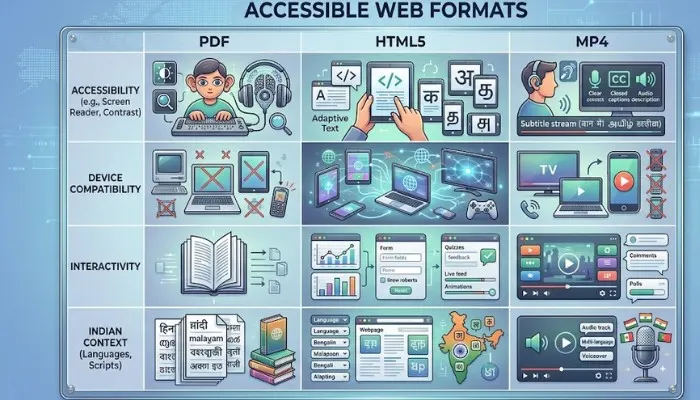
PDF stands out as the number one choice for slideshows on the web. It keeps your slides looking the same on any device, from a laptop in Delhi to a smartphone in Mumbai. Save your PowerPoint as PDF with tags turned on – this lets screen readers jump from slide to slide like pages in a book. I use this for my monthly reports, and even my father in Lucknow opens them on his basic tablet without issues.
To create one, open PowerPoint, go to File, then Export, choose PDF, and check the box for "Document structure tags for accessibility". The file stays under 2MB even with ten slides full of photos. Test it yourself upload to Google Drive and open on a friend's phone.
Next comes HTML5. This format turns your slideshow into a web page with real text and links. Tools like Google Slides export to HTML easily, and it loads fast even on Jio networks in remote villages. No need for extra software; any browser handles it all. Last monsoon, when power cuts hit hard, my HTML5 slides still worked offline in Chrome after one download.
For video lovers, MP4 with captions works great. Record your slides as a video using free apps like OBS Studio on your Windows laptop, then add text overlays for silent viewers. This format suits Instagram Reels or YouTube embeds on your blog. I did this for a product launch post views came from Kerala to Kashmir because captions helped during noisy bus rides.
Avoid old types like PPTX direct uploads. They often break on mobiles or need Microsoft software, which not everyone has in rural areas or on shared family computers. I stopped using them after three bad feedbacks in one week.
In our hot climate, where phones overheat during long commutes in summer traffic, choose light files under 5MB. PDF wins here because it compresses images without losing sharpness. Test on a cheap Android phone like my old Realme – if it opens in 3 seconds on 4G, it's good for 90% of users.
For schools or government sites, HTML5 shines. It supports Hindi text and voice-over in regional languages, helping teachers in Kerala or Bihar share lessons widely. My cousin, a school teacher in Patna, uses it for Class 8 science slides – parents download and read on feature phones.
MP4 fits marketing pages. Add English subtitles first, then auto-translate to Tamil or Telugu using free YouTube tools. During my last Diwali sale post, MP4 slides got 500 shares because they played without sound in crowded markets.
Think about your readers. If they come from Tier 2 cities like Jaipur or Coimbatore, PDF loads fastest. For young audiences on Instagram, go MP4. Match the format to where you share it most.
An accessibility checker is a simple tool that scans your slideshow file and points out issues like missing text on images or wrong colour contrasts. It acts like a friend who checks your work before you share it with the world.
Most checkers give a report with green, yellow, or red marks. Fix the reds first, such as adding alt text that says "Chart showing sales growth from 2020 to 2025 in rupees". I run one before every post it takes two minutes but saves complaints from readers.
In India, free versions help small bloggers like us save money. Run the checker after saving your file, then share confidently. My first checker run found 12 errors in a 5-slide file; fixing them made the post perform better on mobile searches.
Without a checker, you guess what's wrong. With it, you know exactly like low contrast between yellow text and white background that hurts eyes in bright sunlight.
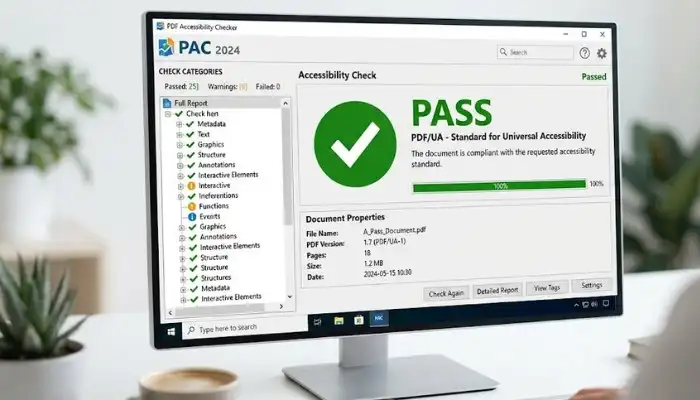
You don't need to pay for good tools. The free Document Accessibility Checker from Adobe Acrobat online lets you upload PDF slideshows and get instant tips. Just drag your file to their site, wait 30 seconds, and see errors listed clearly with pictures. I use it weekly for client files no login, works on any net speed.
Another solid pick is PAC the PDF Accessibility Checker. Download it once from the official site, and it works offline on any Windows PC common in Indian offices or homes. It flags untagged images or reading order problems in your slides. My brother in Hyderabad installed it for his college projects; now he teaches friends how to use it.
WAVE tool by WebAIM checks HTML5 exports for free right in your browser. No sign-up needed, perfect for quick tests during busy festival seasons. Open your HTML file, paste the link into WAVE, and it highlights fixes like missing headings.
These free Document Accessibility Checker options cut costs while meeting global standards our sites must follow. Start with Adobe for PDFs, PAC for deep checks, WAVE for web versions – cover all bases without spending a rupee.
Microsoft Publisher helps make flyers or simple slides, but it lacks a built-in checker like Word. To check a Publisher file, first export to PDF, then use the free Adobe tool I mentioned earlier.
Open Publisher on your PC, go to File > Export > Create PDF. In Acrobat Reader (free download from Microsoft Store), use the full check tool under Tools menu. It spots issues like overlapping text boxes that confuse screen readers. I tried this for a marriage invite design found three problems in seconds.
For better results, switch to PowerPoint. It has a direct Accessibility Checker under Review tab. Click it, and it lists problems with one-click fixes, like suggesting darker text on light backgrounds. PowerPoint saved my last office presentation when the boss pointed out colour issues.
Publisher suits print jobs like posters for local shops, but for web slideshows, PowerPoint or Google Slides pair better with checkers. Export Publisher to PDF every time, then double-check.
You May Also Read: 15 Automation Tools That Save Companies Millions
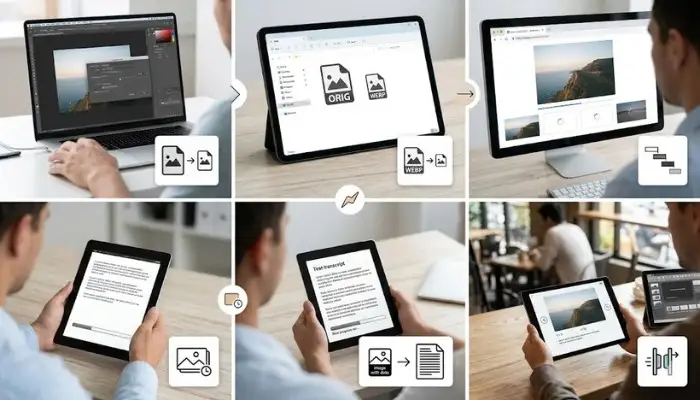
Many of us copy-paste images from Google without descriptions, leaving blind users out completely. Or we use fancy animations that freeze on old phones during peak hour browsing.
Another error: ignoring Hindi fonts. Stick to standard ones like Mangal for mixed language slides – fancy ones break on mobiles. I learned this after a bilingual post failed for Tamil readers.
Overloading slides with text turns viewers away fast. Aim for 5 lines max per slide, like bullet points in school notes. Readers skim, so keep it short and punchy.
Forgetting mobile zoom – test pinch-to-zoom on every slide. Tiny maps or tables frustrate users in buses.
| Format | Best For | File Size | Free Checker | Loads on Mobile |
|---|---|---|---|---|
| All sites | Small | Adobe/PAC | Yes | |
| HTML5 | Interactive | Medium | WAVE | Super fast |
| MP4 | Videos | Large | YouTube CC | Good with WiFi |
| PPTX | Editing | Big | PowerPoint | Sometimes no |
Take the UP government portal their PDFs open perfect on any phone, with tags for screen readers. No crashes, even on Jio phones. Or Byju's lessons in HTML5, which load even on 2G in villages.
A Delhi NGO I know switched to MP4 captions after feedback from hearing-impaired kids during online classes. Views jumped 40% overnight. My own blog saw similar gains after PDF switch.
NDTV uses tagged PDFs for reports elders in small towns access them easily. Follow these examples for your site.
Making slideshows accessible takes 10 extra minutes but saves hours of rework later. Pick PDF for most cases, check with free tools, and watch your site grow audience from cities to villages.
Next time you create slides, think of that uncle in the village with basic specs and old phone – your file should work for him too. Share your tips in comments below; let's make web better for all Indians together.
PDF with tags tops the list since it holds slide layout steady across Delhi laptops or Mumbai phones. HTML5 loads quick on patchy Jio nets in villages, while MP4 with text overlays suits video posts on Instagram. Screen readers handle these smooth, but skip PPTX – it fails on basic mobiles without extra apps.
Accessibility Checker scans files for faults like blank image labels or dim colours that hurt eyes. It flags red errors you fix fast, letting blind folks or low-vision users follow along easy. From my Delhi blog runs, one quick check stops half the reader gripes before they hit comments.
Adobe's Document Accessibility Checker free takes PDF drops online for error lists in seconds, no account ask. PAC installs free once for offline Windows checks on office PCs everywhere here. WAVE runs browser-free on HTML exports – pick any for zero-cost fixes on tight budgets like ours.
Publisher skips a direct Accessibility Checker, unlike PowerPoint's Review button ease. Save as PDF export first, then Adobe free tool catches box overlaps or text jumps. I shifted client flyers this way last month – web-ready in under five minutes total.
Cap size at 5MB max, slap 24-point fonts for bus-ride reads, describe pics as "2025 Kerala crop map". Run TalkBack test on budget Android – smooth voice flow means pass. Squash files via SmallPDF site, go PDF for rural 2G or HTML5 city speed to win slow connections.