Cloud Computing Features Explained: How the Cloud Really Works
Cloud computing is everywhere. You use it when you save a file to Google Drive you use it when you...
Gadgets & Technologies Are Together
It's daunting to build your first website. There's a lot to consider. Design, content, security and mobile users. Things can easily be missed. This website features checklist for beginners covers everything you need. Site pages, contact forms, clear navigation, mobile friendly design, SSL certificate, hosting and domain name.
Basics of SEO including meta titles and alt text are also covered. Security features, such as SSL and backups. Testing before launch. You don't have to know your way around a computer to use. Take one step at a time by following this checklist. In the end, you will be able to open your site to visitors, and it will be fully functional, easy to use and secure.
Your domain name is your address on the internet! Make it succinct and easy to recall. Select .com or .in/.co.uk domain name which suits your country. It creates customer confidence with visitors. Purchase your domain name as early as possible to prevent someone else from getting it.
Read More: What Are the Best Software Features? Ultimate Buying Guide
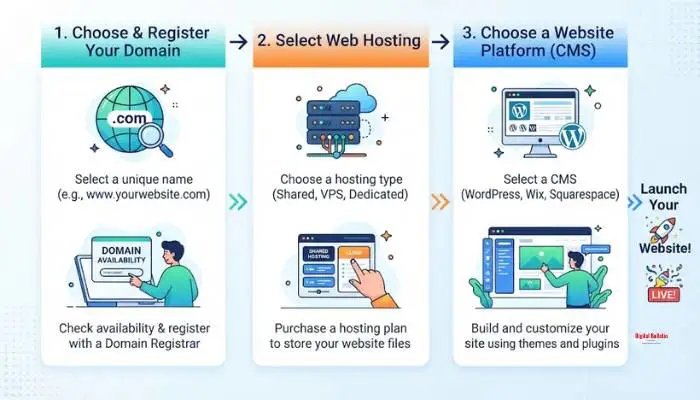
Your web host stores your website files. Speed matters. Look for a host with fast loading times and reliable uptime. Security features like SSL certificates and regular backups are essential . Managed hosting takes care of technical tasks so you can focus on your business.
You have two main choices: website builders or content management systems (CMS). Website builders like Wix are good for beginners. No coding needed. A CMS like WordPress gives you more control and flexibility. Pick the one that matches your comfort level .
Over half of all website visitors come from phones. If your site is hard to use on mobile, people will leave. Responsive design makes your site look good on every screen size . Text must be easy to read on small screens. Buttons must be big enough to tap. This is not optional. Google uses mobile-first indexing, so mobile design affects your search ranking .
Visitors need to find what they want quickly. Keep your menu simple and logical. Use clear labels. A messy menu frustrates people and they leave. Every page should be reachable in three clicks or less .
Security is not optional. Every website needs an SSL certificate. This encrypts data between your site and visitors. It shows the padlock icon in the browser and builds trust. Without HTTPS, your site may not even appear in Google search results .
People hate slow websites. If your site takes too long to load, visitors leave. Compress images before uploading. Remove unused plugins. Choose a fast hosting provider. Use tools like Think with Google to check your speed .
Make it easy for people to reach you. A contact page with your email, phone number, and address builds trust. Use a contact form to avoid spam. WPForms Lite and Ninja Forms are good free options .
Your visitors need to know what to do next. "Sign Up," "Buy Now," "Book a Call." These are CTAs. Place them where users naturally look. Without CTAs, visitors might leave without taking any action .
Add social media icons in your header or footer. This helps visitors find you on other platforms. It also shows you are a real business. Most businesses use icons to link to Facebook, Instagram, and LinkedIn .
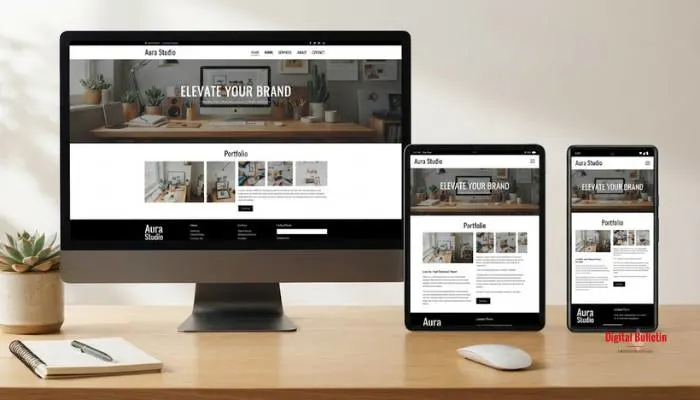
This is your first impression. It should clearly communicate what you do and why people should care. Hook visitors quickly or they will leave. Keep it clean, focused, and easy to scan.
People buy from people. Tell your story. Who are you? What do you stand for? Why should someone trust you? This page builds connection and credibility.
Describe what you offer clearly. Use simple language, not jargon. Include pricing if possible. Help customers understand how you solve their problem.
Make it simple. Include a form, email address, and phone number. Give people multiple ways to reach you. This builds trust and shows you are accessible.
This is important for trust and legality. Explain how you collect and use visitor data. This is required by law in many places. Most website builders have templates you can customize.
Your website should look professional. Use colors that match your brand. Stick to one or two fonts. Keep headings and body text consistent. This makes your site easier to read .
Avoid generic stock photos when possible. Use authentic images that show your real business. Blurry or low-quality photos look unprofessional. Use tools like Imagify to compress images without losing quality .
Do not cram everything together. Use whitespace to create a clean and uncluttered design. It helps visitors focus on what matters.
Test every form before launch. Contact forms, sign-up forms, checkout forms. Make sure submissions go through. Broken forms lose customers .
Check all links. Navigation links, footer links, social media links. Broken links frustrate visitors and hurt your search ranking. Use a link checker tool like Check My Links or Screaming Frog to find broken links automatically .
This is the small icon that appears in the browser tab next to your site name. It helps visitors identify your site when they have multiple tabs open. A simple logo works well .
Use heading tags correctly. H1 for the main title. H2 for sections. H3 for sub-sections. This helps search engines understand your content. It also makes your page easier to read .
Meta titles appear in search results. Keep them under 70 characters. Include your main keyword. Meta descriptions are the short summaries below the title. Keep them under 160 characters. They need to convince people to click .
Add descriptive text to images. This helps screen readers for visually impaired users. It also helps search engines understand your images. Describe what the image shows and include keywords naturally .
Make sure text is readable. Avoid low-contrast color combinations like light gray on white. Use a contrast checker to test your colors. This helps people with visual impairments .
Some visitors cannot use a mouse. They navigate using keyboards. Make sure all interactive elements can be reached with the Tab key. This includes menus, forms, and buttons .
Screen readers convert text to speech for visually impaired users. Alt text tells them what the image shows. Always add descriptive alt text to your images .
Set up Google Analytics before launch. This free tool tracks who visits your site, how they find you, and what they do. This data helps you improve your content and marketing. Basic setup is easy and free .

Creating your initial website can be quite a daunting task. Begin with the fundamentals: domain name, hosting, and a basic platform. Prioritize mobile optimization and user-friendliness. Secure with SSL certificate. Test all the time before launch. Establish analytics to monitor performance. There's always time to make changes to your site as time goes on. Starting with a clean, functional, secure website is the foundation for building up your website.
Home, About, Services, Contact, Privacy Policy. That is it. People need to know who you are and how to reach you. A blog helps but you do not need it on day one.
Most people use phones now. If your site looks bad on a phone, they leave. Google also checks your mobile site first. So if mobile is broken, you rank lower.
Domain is about $10 a year. Hosting is $5-15 a month. Builders like Wix are $15-30 a month. You can start for under $200 for the whole year.
Yes. It is called SSL. It keeps visitor data safe. Without it, Google shows a warning. Most hosts give it to you for free now.
Check on Chrome and Safari. Check on phone and computer. Click every link and form. Check speed. Read everything twice for typos. Ask a friend to try it too.