Best Free Slideshow Maker for Beginners: Top Apps and Online Tools
Making a slideshow should not be hard. You have photos on your phone. You want to turn them into a...
Gadgets & Technologies Are Together
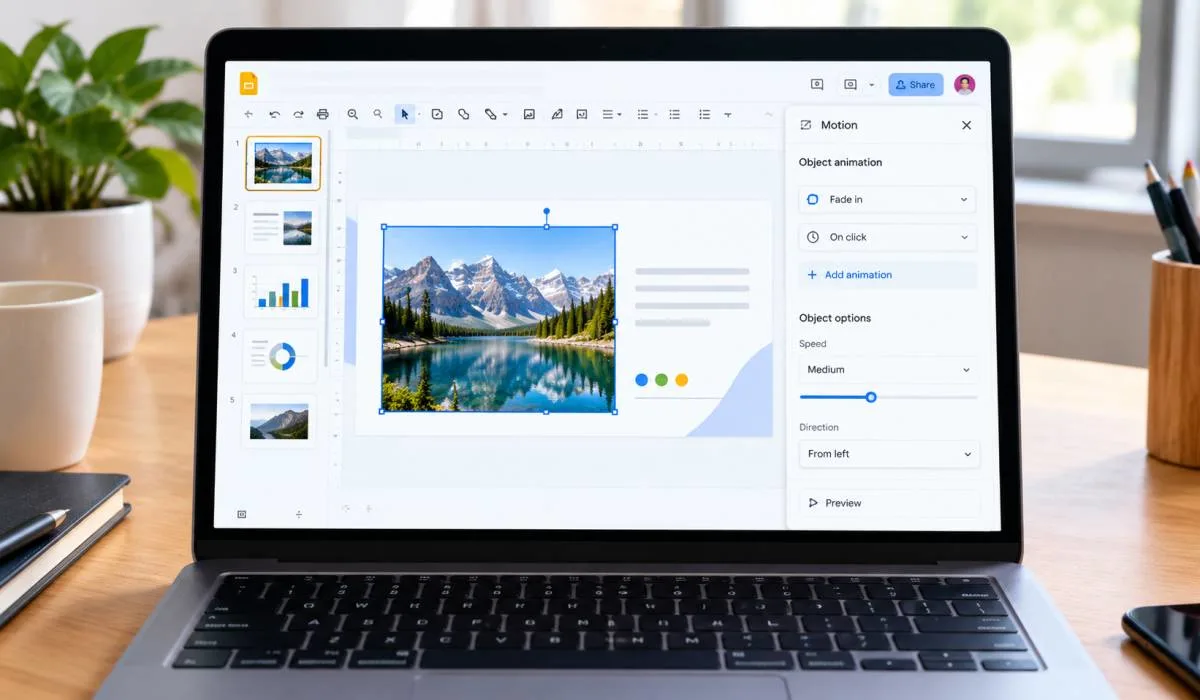
Google Slides can do more than static slides. You can make objects fly in, fade out, or spin. You can set slides to transition smoothly from one to the next. And you can build a slideshow that plays on its own. The process is simple once you know where to look.
This guide covers how to create an animated slideshow in Google Slides everything: adding animations on a computer, the mobile limitations, and how to make a self-running slideshow. No design skills needed.
This is the main way to animate text, images, and shapes. You need a computer for this. The mobile app does not support editing animations .
Open your presentation in Google Slides on your computer.
Click the object you want to animate. This could be a text box, an image, or a shape.
Go to Insert > Animation . Or click View > Motion .
A panel opens on the right side. Click Add animation .
Choose your animation from the dropdown. The default is "Fade in." You can pick from "Fly in," "Zoom in," "Spin," and more .
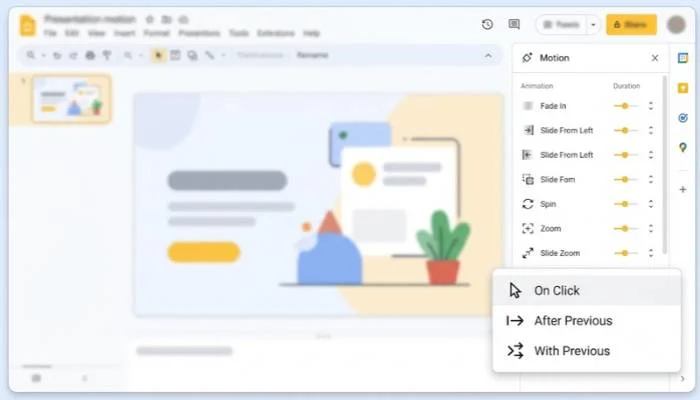
Set the timing. The second dropdown controls when it starts:
On click: Starts when you click or press space.
After previous: Starts right after the last animation finishes.
With previous: Starts at the same time as the last animation .
Adjust the speed using the slider. Drag it left for faster, right for slower .
Preview by clicking the Play button in the panel .
If you have a text box with multiple bullet points, you can make each one appear separately.
Select the text box. Add an animation. Check the box next to "By paragraph" . Now each bullet will appear one at a time when you click.
Read More: How to Make a Slideshow Video: Simple Step-by-Step Guide
Transitions control how you move from one slide to the next. They are different from object animations.
Here is the important part. You cannot add or edit animations in the Google Slides Android app. The app only lets you view and present slides that already have animations set up .
So how do you do it on Android?
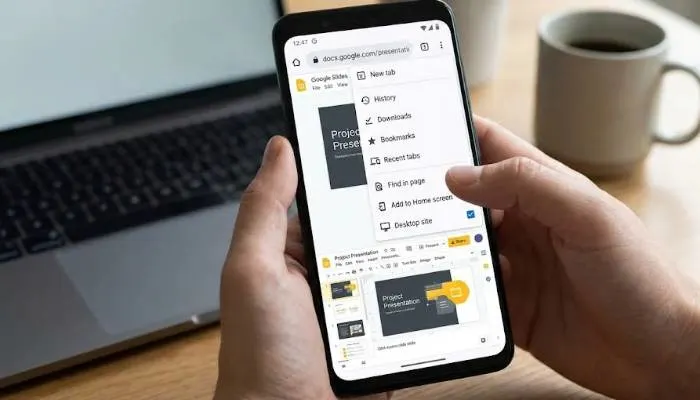
You can access the desktop version of Google Slides through your phone's browser.
This is clunky on a small screen. But it works if you have no other option.
Tablets have the same limitation. The Google Slides app for iPad and Android tablets does not support animation editing .
On an iPad or Android tablet, the screen is big enough for the desktop interface to be usable.
Keep in mind that touch targets are small. It takes patience for serious editing, use a computer.
You May Also Read: Best Free Slideshow Maker: Top Mobile, Web and PC Tools for 2026
If you want a self-running slideshow (for a display, a kiosk, or a loop), you can set it to advance on its own.
This is the easiest way. Every slide shows for the same amount of time.
If some slides need more time than others, use the transition settings.
You cannot do it in the app. Open Chrome on your phone, go to slides.google.com, and request the desktop site. Then use the Insert > Animation menu .
The Android app does not support animation editing. You must use the desktop version through a browser. The app is for viewing and presenting only .
Same workaround. Open a browser (Safari or Chrome), go to slides.google.com, and request the desktop website. The Motion panel will appear .
Select the object. Go to Insert > Animation. Choose an effect from the panel on the right. Set when it starts and how fast it runs. Click Play to preview .
Animation affects objects on a slide (text, images). Transition affects how the whole slide changes to the next one .
Select the text box with the bullets. Add an animation. Check the box next to "By paragraph." Each bullet will appear on a separate click .
Go to File > Share > Publish to the web. Check "Auto-advance slides" and choose a timing. Check "Start slideshow as soon as the player loads." Copy the link and open it in a browser .