How to Protect Personal Data from AI: Practical Steps That Work
AI tools collect more data than most people realise. Every prompt you type. Every file you upload. Every conversation you...
Gadgets & Technologies Are Together
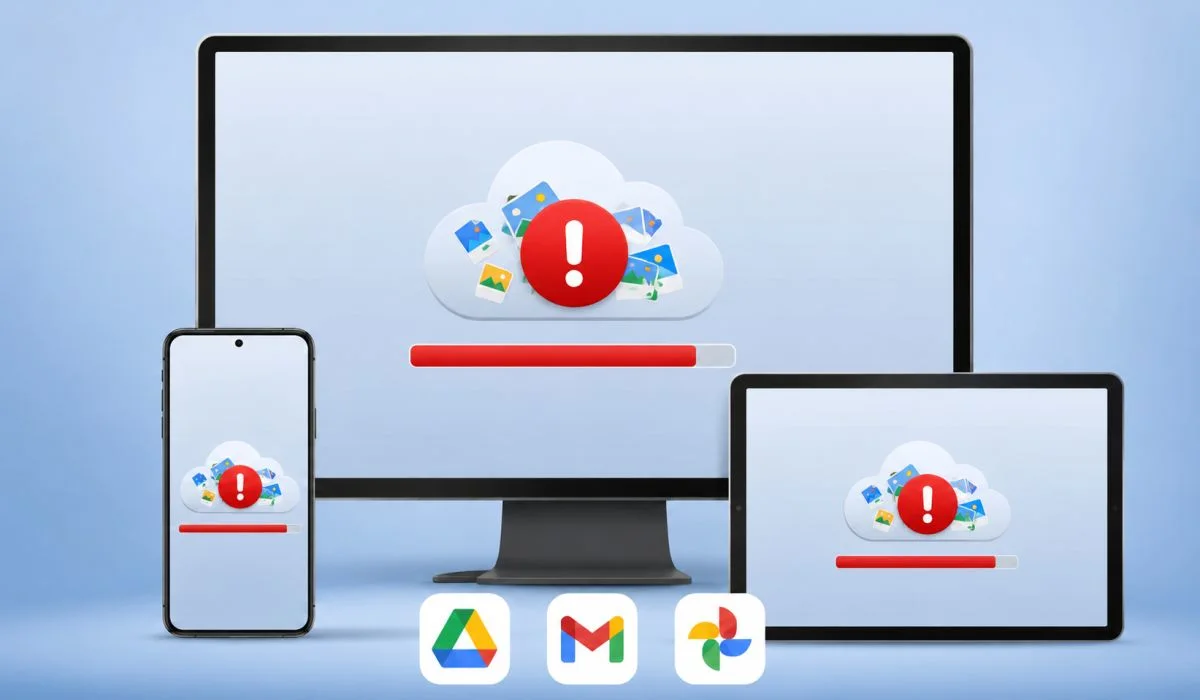
Running out of storage is annoying. You get those warnings. You cannot send emails. You cannot save new files. That free 15GB fills up faster than you think. Most people do not realise that Gmail and Photos use the same storage. So clearing space means cleaning all three.
You do not need to pay for Google One. There are simple ways to free up Google Drive storage without spending anything. Start with the Storage Manager. See what is taking the most space. Delete large attachments from Gmail. Clear out old phone backups. Empty the trash. This guide walks you through each step. No technical skills required. Just a few minutes of your time.
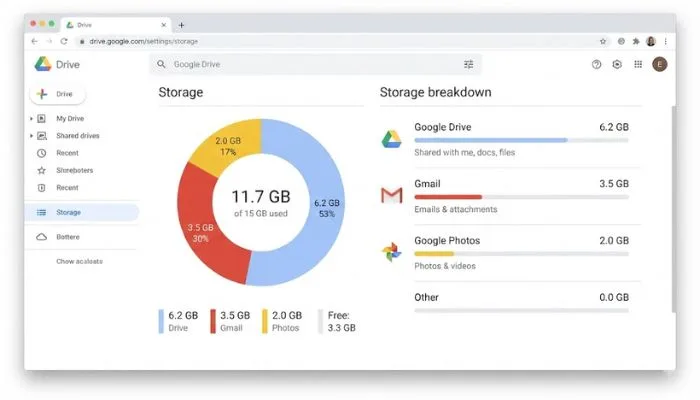
Before you start deleting random files, check what is actually taking up space. Google provides a built-in Storage Manager tool that shows you exactly where your storage went .
Read More: How to Remove AI from Google Search Results
The most effective way to free up space is to target big files first. A single 2GB video takes up more space than thousands of text documents .
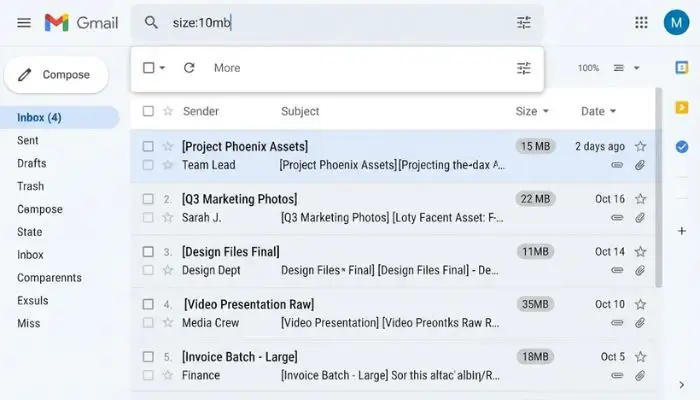
has:attachment larger:10M into the Gmail search bar Important: Deleting a 10MB email with an attachment frees up more space than deleting hundreds of plain emails .
Gmail is often the hidden culprit. Here is how to tackle it.
This is the easiest step. It takes seconds and frees up space immediately.
Desktop:
Mobile:
Those marketing emails pile up without you noticing.
category:promotions older_than:1y Repeat the same for category:social older_than:1y .
If you know you have unwanted PDFs or ZIP files, search by file type.
Type these in Gmail search:
filename:pdffilename:zipfilename:mp4This shows specific file types you can bulk-delete .
Drafts can pile up over time. Visit your Drafts folder and delete any you no longer need .
Photos and videos in Google Photos take up a lot of space .
Tip: If you are backing up WhatsApp images and videos, they are likely taking up significant space. Go to Google Photos settings, find WhatsApp, and toggle off auto-backup if you do not need it .
You May Also Read: How to Choose the Best VPN Service in 2026
Here is something many people do not realise. Files that other people have shared with you do not count toward your storage . The only files that count toward your quota are files you own .
To manage shared files:
If you use Google Drive to back up your phone, those backups can take up a lot of space .
On Desktop:
This is where most people go wrong. Deleting files only moves them to the Trash. They still take up space until you empty the Trash .
Remember that items in Google's Trash stay there for up to 30 days before being permanently deleted .
If you do not want to delete anything, you can move files to another Google account. Create a free secondary account and move old files there .
Google Takeout lets you download everything from your Google account. You can download all your files, verify they are saved on your computer, then safely delete them from the cloud .
If spammers keep sharing files with you, block them. In Google Drive, go to Shared with me, find the sender, right-click, and choose "Report or block" .
| Action | Where | Impact |
|---|---|---|
| Delete emails with large attachments | Gmail | High |
| Empty Spam folder | Gmail | Medium |
| Delete old promotional emails | Gmail | Medium |
| Delete blurry photos and screenshots | Google Photos | High |
| Delete old device backups | Google One | High |
| Sort and delete large files | Google Drive | High |
| Empty Trash | All three | Low but necessary |
You do not need to pay for Google One if you are willing to spend 20 minutes cleaning up. Start with the Storage Manager. See what is taking up the most space. Target large files first. Empty your trash. Do this once every few months and you will stay under the free limit without stress.
If you are still running out of space after all this, then paying for extra storage might make sense. But most people can free up several gigabytes just by deleting old emails and media files they no longer need.
Go to drive.google.com. Click Storage on the left side. You will see what is using space across Drive, Gmail, and Photos. On mobile, open Gmail, tap your profile picture, and tap the storage section.
Delete large Gmail attachments. Search for has:attachment larger:10M. Delete those emails. Then empty Spam and Trash. Next, sort Drive files by size and delete big ones you do not need. This clears space fast.
No. Only files you own count. Shared files do not use your space. You can remove them from your view, but it will not free storage.
You do not lose files. Google stops you from adding new ones until you free space. They give you a grace period before restricting access.
Create a second Google account and move old files there. Use Google Takeout to download everything to your computer. Compress large files before uploading. The free limit stays at 15GB no matter what.