How to Protect Personal Data from AI: Practical Steps That Work
AI tools collect more data than most people realise. Every prompt you type. Every file you upload. Every conversation you...
Gadgets & Technologies Are Together
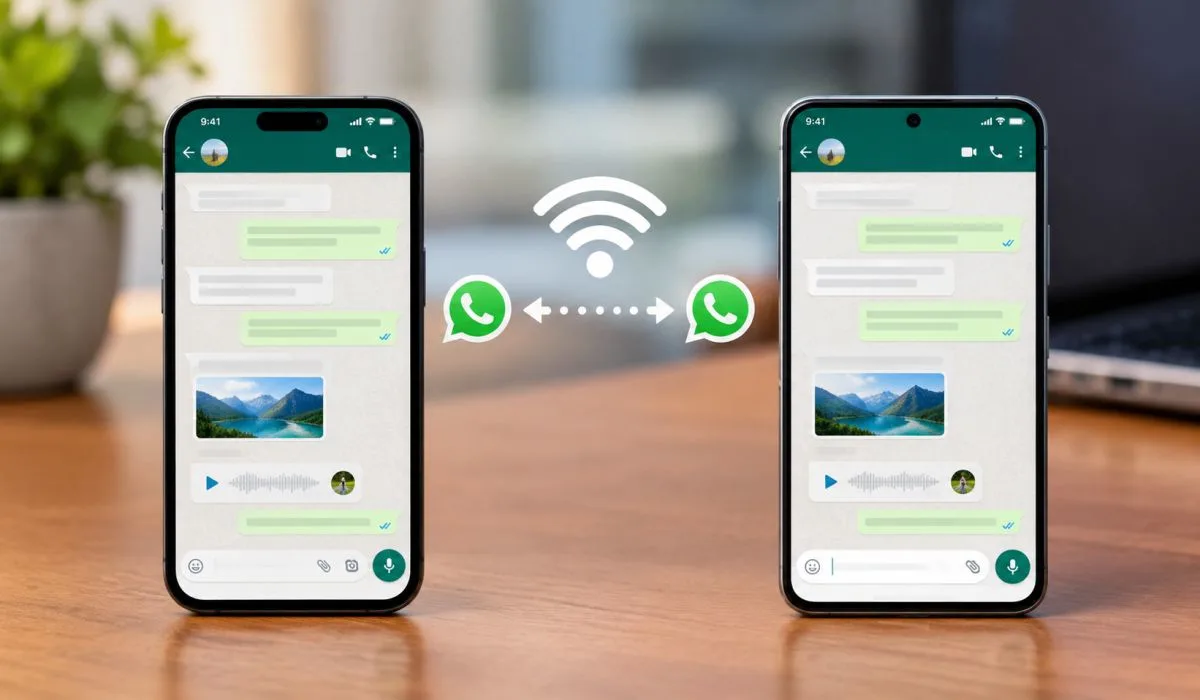
Got a new phone? Exciting, right? Then you remember your WhatsApp chats. Years of messages. Photos. Memories. All stuck on old phone. Now what?
Learning how to transfer WhatsApp to new phone is easier than you think. WhatsApp has built-in tools now. No need for computer. No need for cables. Just two phones and Wi-Fi. Android to Android? Simple. Android to iPhone? Also possible. Old phone broken? There is a way if you have backup. So do not panic. Do not lose your chats. Let me explain every method simply. No confusion. Just clear steps that work.
Most people lose their chats because they rush. They install WhatsApp on the new phone, verify the number, and start using it. Then they remember the old chats. By then it is too late. WhatsApp only allows restore during first setup. Once you skip that step, the backup option disappears. Photos, videos, voice notes, years of conversations. All gone no way to get them back.
Read More: How to Create an AI Avatar for Free: Best Tools
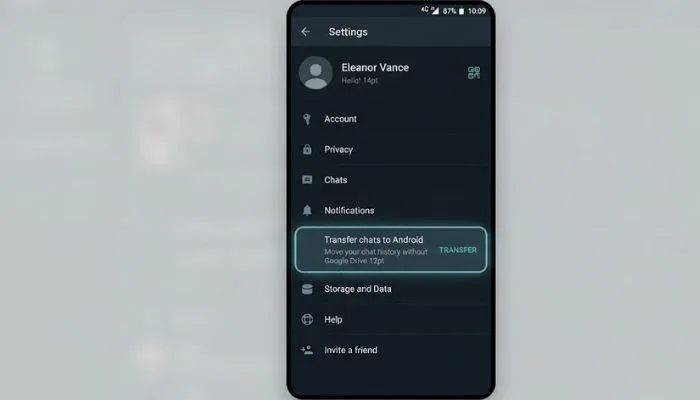
This is the easiest way. WhatsApp has a built-in "Transfer chats" feature that moves everything directly from your old Android phone to your new Android phone. No cloud backup needed. Just two phones close to each other .
What you need first:
Steps on your old phone:
Steps on your new phone:
The transfer will start. A percentage bar will show progress. Keep both phones unlocked. Do not close WhatsApp. Once done, tap Next .
Important: Do not delete anything from your old phone until you confirm the transfer worked. If it fails, your data stays safe on the old phone .
Moving from Android to iPhone is possible, but it needs a specific app. Apple's "Move to iOS" app handles this. You cannot use a normal backup because Google Drive backups do not work on iPhone .
What you need first:
Steps:
What you cannot transfer: Call history, display name, and payment messages do not move .
If direct transfer does not work, or if your old phone is broken, you can use a Google Drive backup. This works for Android to Android only. It will not work for Android to iPhone .
Step 1: Backup on old phone
Step 2: Restore on new phone
Important: If you start using WhatsApp on the new phone before restoring, you may lose the chance to restore. The backup can only be restored during the initial setup .
You May Also Read: How to Free Up Google Drive Storage Without Paying
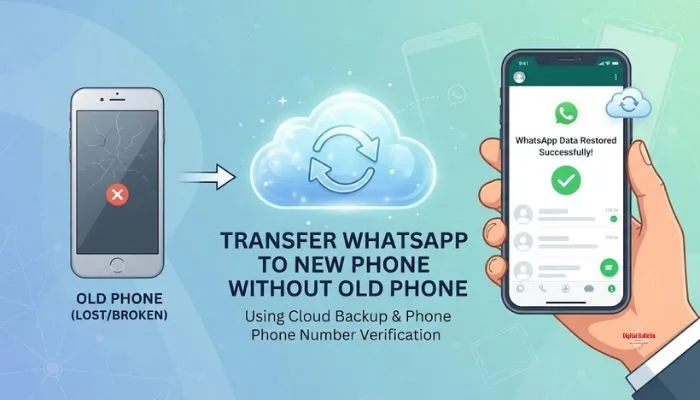
This is the hard situation. Your old phone is lost, broken, or gone. Can you still move WhatsApp? The honest answer is: it depends.
If you have a Google Drive backup:
Yes, you can restore. Just install WhatsApp on your new phone, verify your number, and choose "Restore from backup." You need to sign in to the same Google account that was used for the backup .
If you do NOT have a backup:
Unfortunately, no. WhatsApp does not store your messages on its servers. If there is no backup, and the old phone is gone, the chat history is lost. This is why backups matter.
If you have the old phone but no active number:
You can still change your number first. On the old phone, go to Settings > Account > Change number. Enter the new number. Verify it. Then transfer to the new phone .
If you want to use WhatsApp on a new phone while keeping the old one active:
You can use Linked Devices. On the new phone, install WhatsApp and choose "Link as companion device." Scan the QR code from the old phone. This lets you use WhatsApp on both devices, but the new phone is linked, not the primary. Chat history does not fully transfer this way .
Transferring WhatsApp is easier than ever. For Android to Android, use the built-in Transfer chats feature. It is free, official, and moves everything . For Android to iPhone, use Move to iOS. It requires a factory reset iPhone, so do it during setup .
If direct transfer fails, Google Drive backup is your fallback for Android. Just make sure you restore during initial setup .
Without the old phone, you need a backup. Without a backup, the data is gone. So always keep backups on. Do it today. It takes two minutes and saves you from losing years of memories.
Use WhatsApp's built-in "Transfer chats" feature. Open WhatsApp on old phone. Go to Settings > Chats > Transfer chats. Tap Start. On new phone, install WhatsApp and verify number. Choose "Transfer from old phone". Scan QR code with old phone. Wait for transfer. Done. No computer needed. No cloud backup needed. Works direct.
Yes. Use Apple's "Move to iOS" app. Download it on your Android phone. Start setting up your iPhone. When you reach Apps & Data screen, choose "Move Data from Android". Enter code. Select WhatsApp. Tap Start. Wait. Then install WhatsApp on iPhone and log in. Your chats will appear. But call history and payment messages do not transfer.
Depends. If you have Google Drive backup, yes. Install WhatsApp on new phone. Verify number. Choose "Restore from backup". Sign in to same Google account. Chats come back. If no backup and old phone gone? Sorry. No way. WhatsApp does not store messages on servers. Data is lost. Always keep backups on.
Not if you transfer properly. Use Transfer chats feature for Android to Android. Use Move to iOS for Android to iPhone. Or use Google Drive backup. But if you just install WhatsApp on new phone without transferring, you start fresh. Old chats stay on old phone only. So follow steps carefully.
Depends on data size. Small chats take 5 to 10 minutes. Big chats with videos take 30 to 60 minutes. Keep both phones charged. Keep them close. Do not close WhatsApp. Do not lock phones. Wait for percentage bar to finish. Then tap Next.
Yes. Use Linked Devices. On new phone, install WhatsApp. Choose "Link as companion device". Scan QR code from old phone. Now you can use both. But new phone is linked, not primary. Chat history does not fully transfer this way. Only messages from linking time onwards.
Do not panic. Your data stays on old phone. Nothing is deleted until transfer completes. Just restart both phones. Try again. Make sure Wi-Fi is stable. Make sure storage is enough. Make sure both phones have battery. Then try transfer again.
No. Google Drive backup only works for Android to Android. For iPhone, you must use "Move to iOS" app. Google Drive backups cannot be restored on iPhone. So if moving to iPhone, use Move to iOS during setup. iPhone must be new or factory reset.