Mon, September 7, 2026

Gadgets & Technologies Are Together

Breaking: Latest Software Features 2026: AI Agents and Smarter Tools

Best Photo Slideshow Maker for Instagram: Free & Easy

Best Photo Slideshow Maker for Instagram: Free & Easy

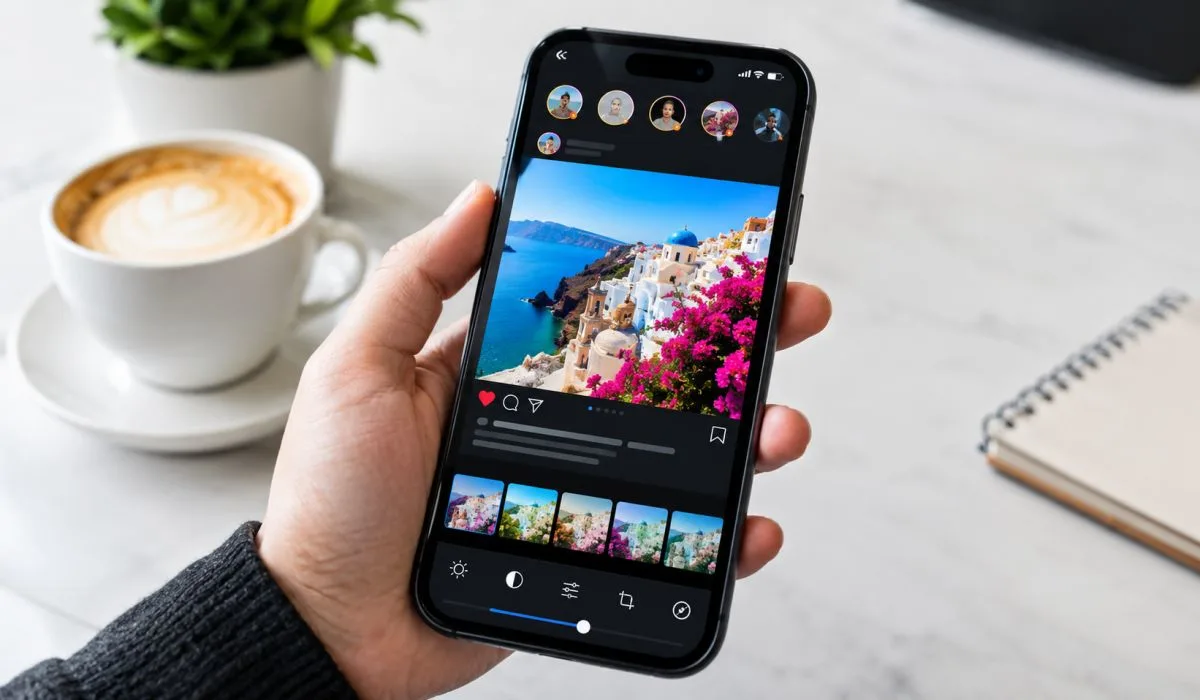
Instagram is a visual platform. Static photos blend into the feed. A slideshow stops the scroll. It keeps people watching longer. That sends a signal to the algorithm. Your content gets shown to more people. The right photo slideshow maker for Instagram helps you create these videos quickly and easily. You do not need editing skills. You just need a good app.

Many are free. Some have no watermark. Others let you add music without paying. A few even use AI to build the slideshow for you. This guide covers the best options for every need. Find the one that works for you and start creating.

What to Look for in a Slideshow App?

Before you download anything, think about what matters to you.

  1. Free vs Paid: Many apps are free. But they have limits. Some show ads. Some add a watermark. Some limit the number of photos. If you want the best photo slideshow maker for Instagram free, look for one that gives you enough features without forcing you to pay.
  2. Music Options: Music makes a slideshow better. The best photo slideshow maker with music lets you pick from built-in tracks and use your own songs. Some apps even sync transitions to the beat .
  3. Watermarks: Many free apps add a logo to your video. This looks unprofessional. If you want a clean look, find a photo slideshow maker for Instagram without watermark. Some apps offer this in the free version.
  4. Ease of Use: You want something simple. Pick photos. Add music. Save. That is it. No complicated timelines. No manual editing .
  5. Aspect Ratios: Instagram uses different formats. Reels and Stories need 9:16. Feed posts work with 1:1 or 4:5. A good app lets you export in the right size .

Read More: Best Slideshow Apps for Android with Music
Best Free Options

FotoSlider Slideshow Maker

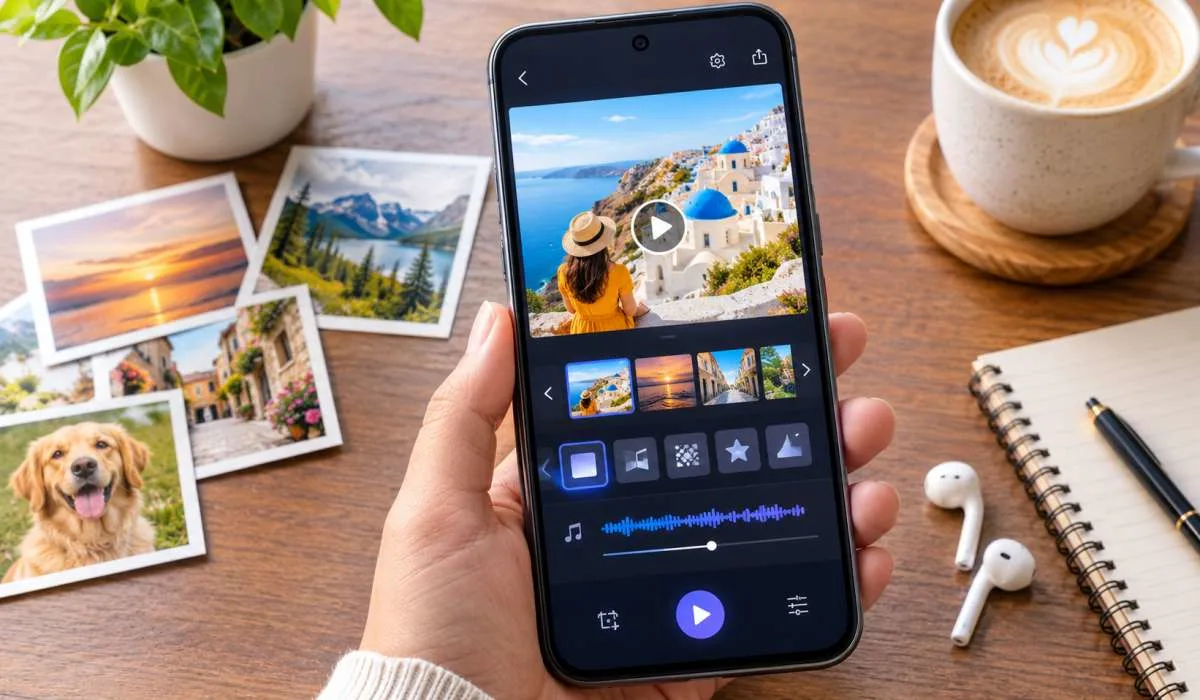
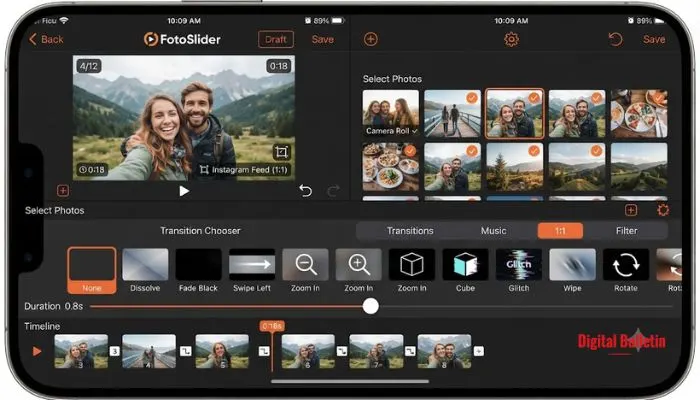
Screenshot of FotoSlider app interface showing photo selection and transition choices for Instagram.

FotoSlider is a solid choice. It has a 4.9 rating with over 36,000 reviews . The app is simple. Pick photos. Add music. Choose transitions. Save and share.

Key Features:

  • Free with no watermark
  • 30+ transitions
  • Built-in music library
  • Use your own songs
  • Export in any aspect ratio: 1:1, 4:5, 9:16, 16:9
  • Intro and outro templates 

The free version has everything you need for Instagram. You get no watermark, which is rare for a free app.

FotoPlay Video Maker

FotoPlay has a 4.8 rating with over 700,000 reviews . It is another free option with no watermark.

Key Features:

  • No watermark
  • Extract audio from any video
  • Voiceover feature
  • Animated stickers
  • 4K export
  • Multiple aspect ratios 

The new update includes auto-caption and 4K export . That is a lot for a free app.

SvenStudios Free Slideshow Reel Creator

This is a browser-based tool. No download. No sign-up. No uploads to servers . Everything stays on your device.

Key Features:

  • 100% free
  • No watermark
  • Browser-based
  • Privacy focused
  • Export as MP4 

It is simple. Upload photos, set the duration, choose a transition, and export. Good for quick slideshows without installing anything.

Best AI-Powered Options

Fliptastic

Fliptastic is designed for social media. It has over one million downloads and a 4.6 rating . The AI feature picks your best photos and arranges them automatically .

Key Features:

  • AI auto-create
  • 40+ transitions
  • 26 built-in music tracks
  • Export for Instagram Reels, Stories, and feed
  • Stock photos built in
  • Themed effect packs 

The AI feature saves time. It analyses quality, faces, and composition. You get a good slideshow without doing much .

PhotoStory

PhotoStory uses smart AI to turn photos into video montages . It automatically detects your best moments and builds the video for you.

Key Features:

  • AI-powered memory maker
  • Music and beat sync
  • HD, 2K, or 4K export
  • Smart sorting by time and location
  • Supports video clips too 

It is designed for parents, travellers, and influencers. The app detects your best moments and builds the video for you .

Apps with No Watermark

Several apps offer no watermark in the free version.

  • FotoSlider Slideshow Maker: Free with no watermark 
  • FotoPlay Video Maker: Free with no watermark 
  • SvenStudios: Free browser tool with no watermark 
  • SlidePlus: Free with no watermark 
  • Fliptastic: Free with no watermark 

These are good choices if you want a clean video without a logo.

You May Also Read: How to Create Engaging Slideshows That Keep Your Audience Hooked

How to Make a Slideshow with Music and Pictures for Free?

Here is a simple process. Most apps follow the same steps.
  1. Step 1: Pick Your Photos
    Choose 5 to 50 photos. The number depends on the app. Some let you add up to 100 photos . For Instagram Reels, 15 to 30 photos work well for a 30 to 60 second video .
  2. Step 2: Add Music
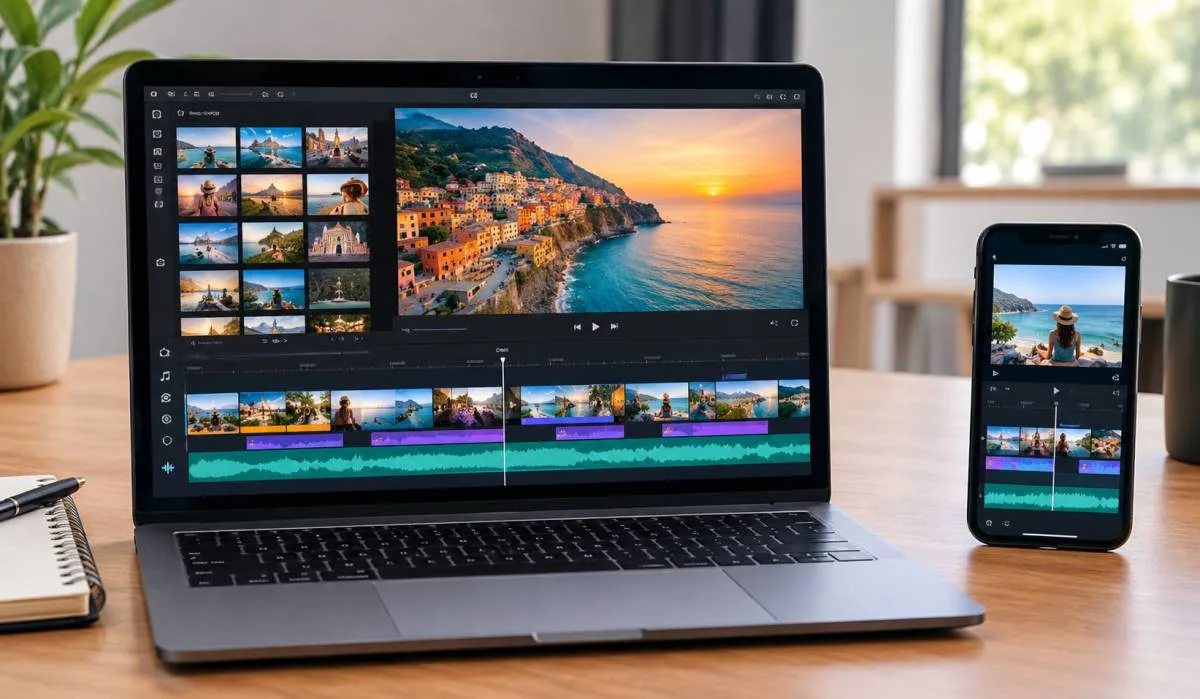
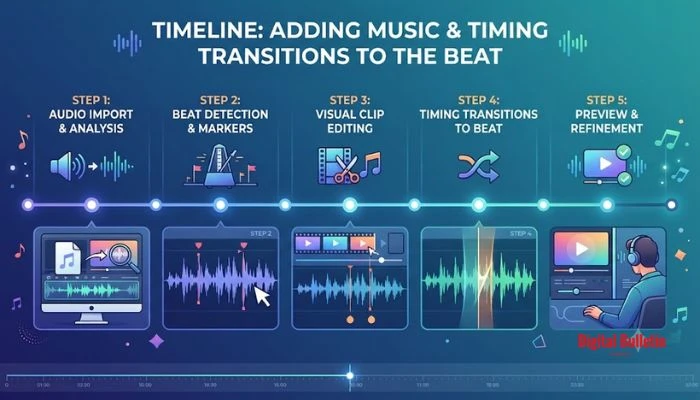
    Choose from the built-in library or upload your own song . Some apps sync transitions to the beat of the music . This makes the video look professional.
  3. Step 3: Choose Transitions
    Most apps offer multiple transitions. Fade, slide, zoom, and Ken Burns are common . The right transition makes the video smooth.
  4. Step 4: Select Aspect Ratio
    Export in the right format. 9:16 for Instagram Reels and Stories. 1:1 or 4:5 for feed posts .
  5. Step 5: Save and Share
    Export the video. Save it to your phone. Then upload it to Instagram.

Infographic showing the timeline of adding background music and timing transitions to the beat.

Tips for Instagram-Optimized Slideshows

  1. Use the right aspect ratio: 1:1 square works for feed posts. 9:16 works for Reels and Stories. 4:5 is another good option for feed posts .
  2. Keep it short: 5-10 photos is enough for most slideshows. Instagram carousels allow up to 20 but shorter tends to perform better .
  3. Sync to the beat: If you add music, time your photo transitions to the rhythm. This makes the video feel more professional .
  4. Use text: Add captions or labels to tell a story across slides. This works well for tutorials or tips .
  5. Consistent theme: Use the same filter or color scheme across all photos. This makes the slideshow look cohesive.
  6. Add a call-to-action: The last slide should tell viewers what to do next. Follow, comment, or visit a link.

FAQs

1. Which free slideshow app works best for Instagram?

FotoSlider and FotoPlay are solid choices. Both are free. No watermark. Good music options. They support the right aspect ratios for Reels and feed posts. High ratings too.

2. Can I really make a slideshow with music for free?

Yes. Most apps have built-in music libraries. You do not have to pay. You can also import your own songs. Just pick your photos, pick a track, and export. That is it.

3. What does an AI slideshow maker actually do?

It does the work for you. You give it your photos. It picks the best ones based on quality and composition. Then it arranges them into a video with transitions and music. You barely have to touch anything.

4. Do I have to pay to remove watermarks?

Not always. FotoSlider and FotoPlay give you no watermark in the free version. Some apps like MoShow only remove it if you subscribe. Read the app description before downloading.

5. Can I use my own songs in these apps?

Yes. Most let you add your own music. You can also trim the song to fit your video length. Some even let you adjust volume levels.

6. Which format should I export for Instagram?

Use 9:16 for Reels and Stories. Use 1:1 or 4:5 for feed posts. Most apps have these presets built in. Just pick the right one before exporting.

7. How long should a slideshow be for Instagram?

Keep it short. Under 60 seconds is best. Around 30 seconds works well for engagement. People scroll fast. You want to hold their attention without dragging.

8. Are these apps safe to use with my photos?

Most are fine. But check the privacy policy if you are worried. ReelStudio is a browser-based tool. It processes everything locally. Nothing gets uploaded to a server. That is a safer option if you are cautious.